
Overview
You may update virtual cards you have created at any time in order to effectively manage your spend.
Updating virtual cards
Follow along with our video guide or step by step instructions below.
1. Select Cards from the navigation and click Virtual Cards
*Note: to view all virtual cards in your organization, navigate to Cards > Virtual Cards. To view only your own virtual cards (i.e cards you are the recipient of), navigate to My Wallet > Virtual Cards.
2. Select virtual card you want to view. This will bring you to the Virtual Card Overview page, where you can find more information about that virtual card.
3. Click Update Virtual Card. You will be able to update:
a. Virtual Card Type
b. Card Name
c. Available credit
d. Active until date
e. Recurring frequency (for a recurring card)
f. Expense Categories, Notes and Attachments
4. When a value is changed, green highlights will indicate intended changes to the section. When you have made the desired changes, click Update Virtual Card to save your changes.
Note: A virtual card can only be updated by its creator. The funding source of the virtual card cannot be changed.
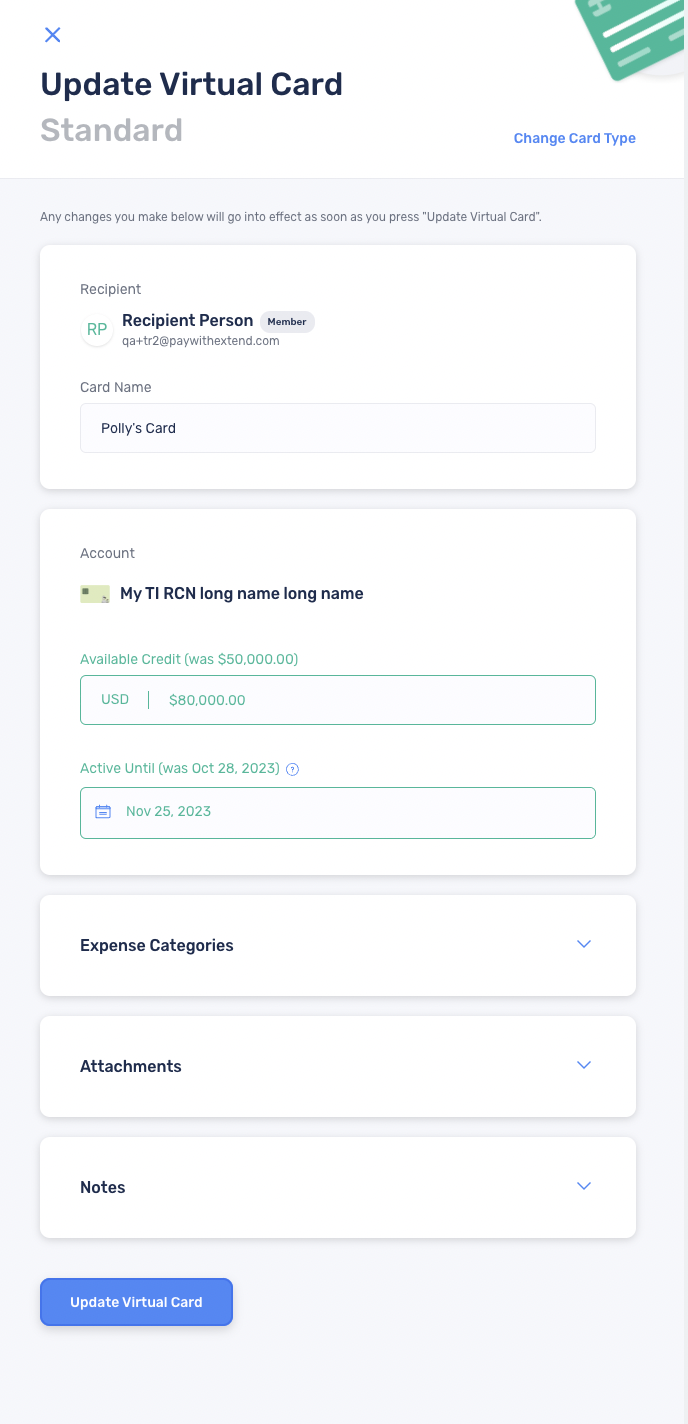
The changes will be made effective immediately and reflected on the virtual card history. Anyone with access to the virtual card will be notified of the changes via email and in their notification center.
*Note: Virtual cards are only available to select issuers